

Why Use GitHub?
GitHub provides version control and remote repository hosting, which allows you to manage changes efficiently and collaborate with others. Every commit can be reviewed by an administrator before merging into the main branch. This process helps prevent errors, bugs, or even malicious changes from damaging your project.
Step 1: Register and Install Git
Create a GitHub Account
Go to GitHub and sign up.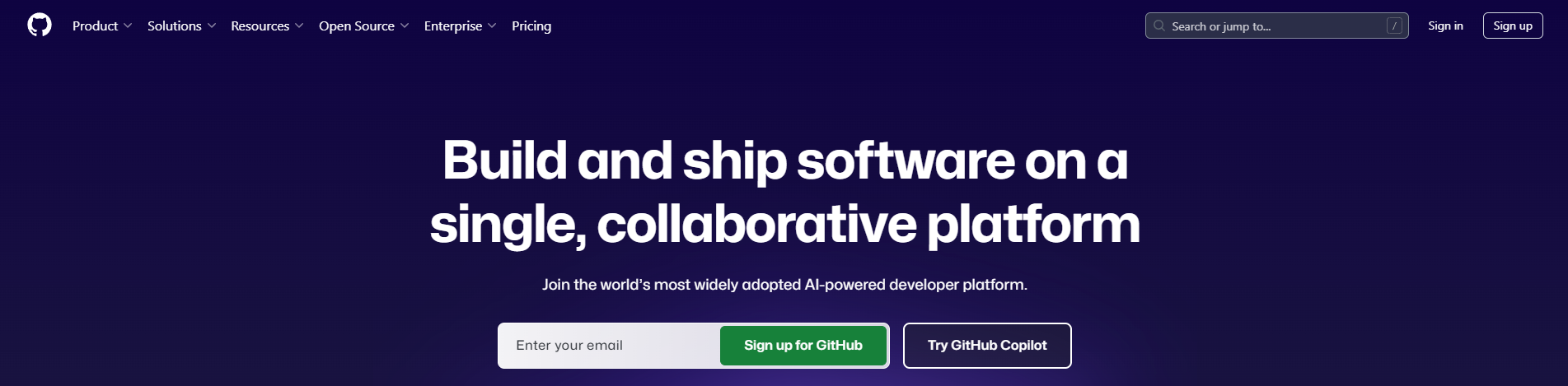
Install Git
Download and install Git for your operating system: Git Downloads.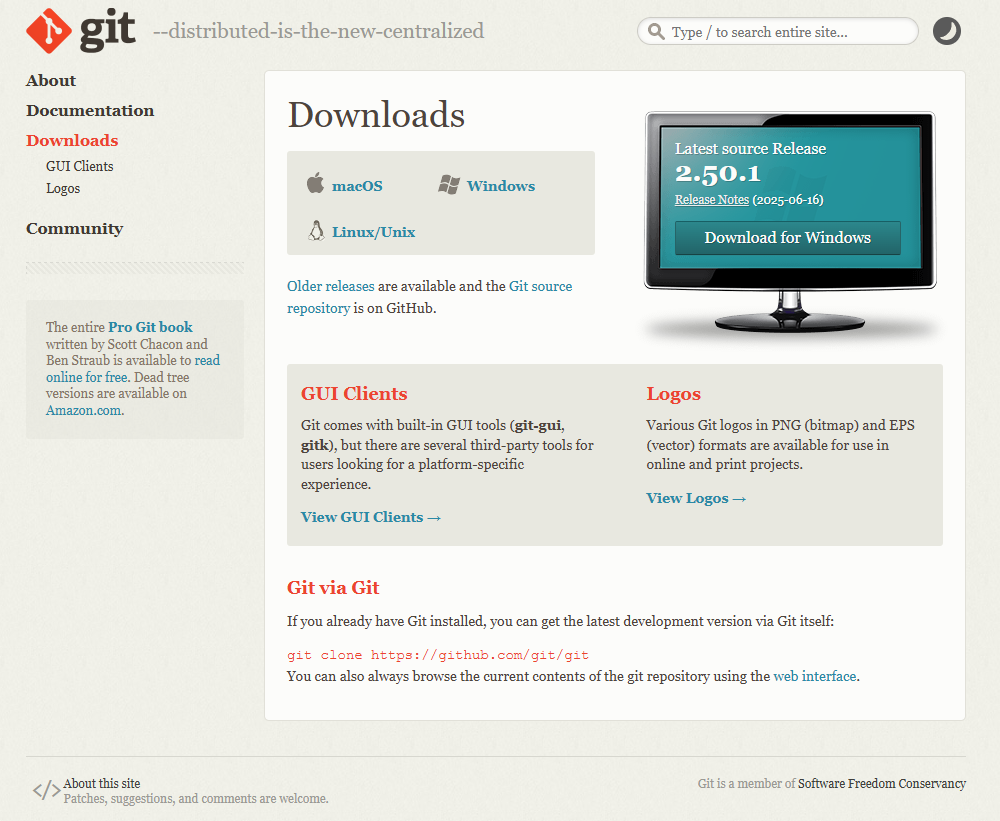
Create a GitHub Repository
Log in to GitHub and create a new repository. This will be the remote location for your project.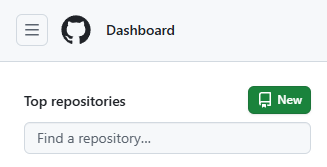
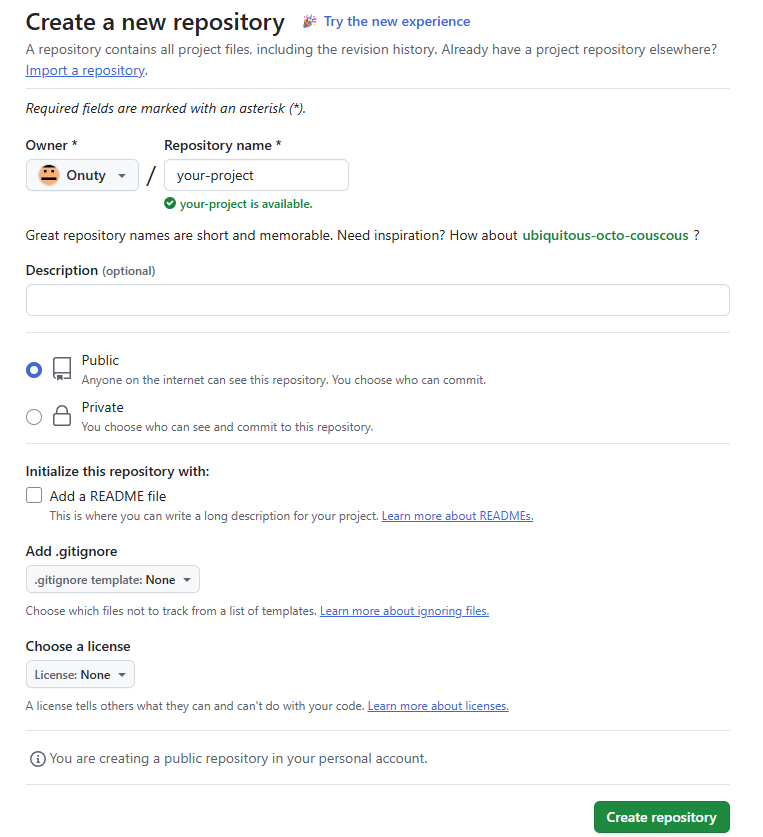
Step 2: Create Your Project Folder
We’ll use the example project ZE Minecraft Redstone Escape.
Open Git Bash and run it as Administrator.
Navigate to your desktop:
cd /c/Users/YourName/DesktopCreate your project folder and enter it:
mkdir ze_minecraft_redstone_escape && cd ze_minecraft_redstone_escapemkdircreates a folder.&&means “run the second command only if the first succeeds.”

Now, you’ve created and entered your project folder.
Step 3: Create Subfolders
Create 5 folders inside your project directory:
flowchart,vmf,bsp,assets, andscriptsare empty folders.
Important: GitHub does not allow empty folders to be pushed. To keep these folders tracked, add a placeholder file called .gitkeep:
.gitkeep is an empty file used to ensure Git tracks empty directories.
mkdir flowchart vmf bsp assets scripts
touch flowchart/.gitkeep vmf/.gitkeep bsp/.gitkeep assets/.gitkeep scripts/.gitkeep
Step 4: Configure Git User Information
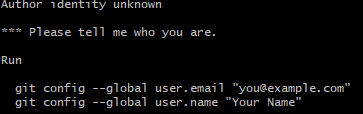
Before committing, tell Git who you are:
git config --global user.name "Your Name"
git config --global user.email "your-email@example.com"
Step 5: Initialize Git and Commit Files
Initialize Git:
git initAdd all files and folders to the staging area:
git add .- The dot (.) means “everything in the current directory.”
Commit your changes:
git commit -m "Initial commit: project structure for ZE Minecraft Redstone Escape"Step 6: Connect to GitHub and Push
Your files are now in local Git, but not on GitHub yet. Link your local repo to the remote repo:
git remote add origin https://github.com/<your-username>/<your-repo-name>.git
git branch -M main
git push -u origin main
git remote add origin→ Adds the GitHub repo as the remote.git branch -M main→ Renames the current branch to main.git push -u origin main→ Pushes your local repo to GitHub.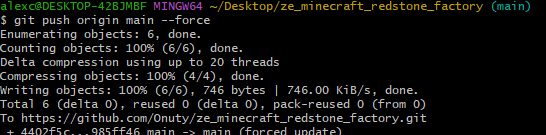
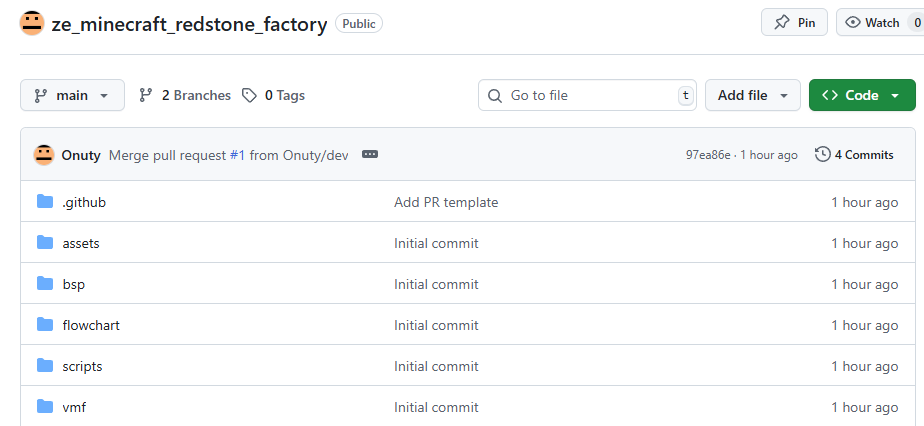
You’ve successfully created a project folder, added subfolders, and pushed everything to GitHub!

 Onuty's blog
發表留言